
Most recording problems, like echo, background noise and dropped connections, are easy to fix before you start and hard or impossible to fix after. This guide is for remote recordings, where you join from your own computer at home or in the office, usually through Riverside or Zoom. It covers everything to do before you join as a guest. It takes about five minutes to read and saves hours in editing.
If you do nothing else: wear headphones, sit in a quiet room, and use wired internet.
Key takeaways
- Wear headphones. Speakers cause echo and feedback on every cut.
- Use an external mic if you have one, and check it’s picked as the input. Anything beats a laptop mic.
- Record in a quiet room with soft surfaces. Turn off fans and the AC, close windows, and put phones and computers on Do Not Disturb.
- Sit close, with your head and shoulders filling the frame. We cut vertical clips for social, and tight framing is what makes them work.
- Test your recording link the day before, and log in 10 minutes early on the day.
- If you make a mistake, pause for two seconds and keep going. That gives the editor a clean cut.
- When you finish, don’t close your laptop until the recording has fully uploaded.
The day before
Test your recording link. Open the Riverside (or Zoom) link we sent you. Allow microphone and camera access in your browser. Record a 30-second test and play it back to check you sound and look good.
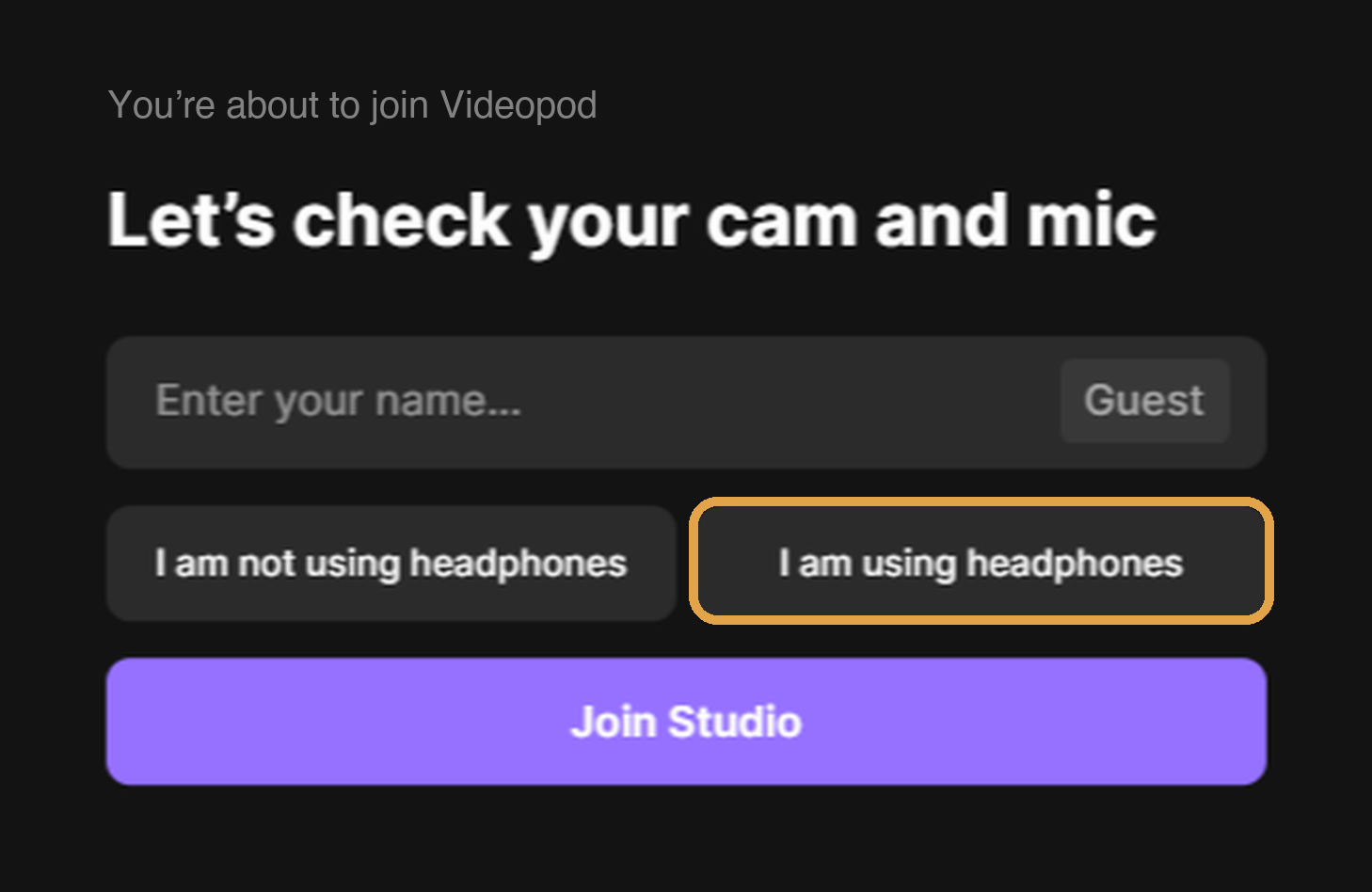
When you join, Riverside asks whether you’re using headphones. Wear them, and pick “I am using headphones”.
Plug into wired internet. Use an ethernet cable if you can. If you have to use Wi-Fi, sit as close to the router as possible. Ask anyone sharing your network not to stream or run big downloads during the recording.
Charge everything. Laptop, headphones and mic: plugged in or fully charged.
Pick your spot. Choose a quiet room with soft surfaces. Rugs, curtains and couches soak up echo. Avoid bathrooms, kitchens and empty rooms with hard floors.
Your setup
Headphones, wired if you have them. Speakers cause echo and a feedback squeal when the mic picks up the sound coming out of them. That can’t be fully cleaned up later.
An external mic, if you have one. A USB mic, a podcast mic, or even phone earbuds with a built-in mic all beat a laptop mic. Place it 6 to 8 inches (15 to 20 cm) from your mouth, slightly off to the side, so you don’t get pops. Then open your recording app’s audio settings and check your mic is picked as the input. Apps often switch back to the computer’s built-in mic on their own.
Face the light. Sit facing a window or a lamp. Never sit with the window or light behind you, or you’ll show up as a silhouette. Soft, even light beats bright direct light.
Camera at eye level. Stack books under your laptop if you need to, so the lens is level with your eyes.
Get close. Sit in the middle of the shot and look into the lens, not at the screen. Your head and shoulders should fill the frame, with no more than about an inch (2 to 3 cm) of air above your head. Closer than feels natural is right.
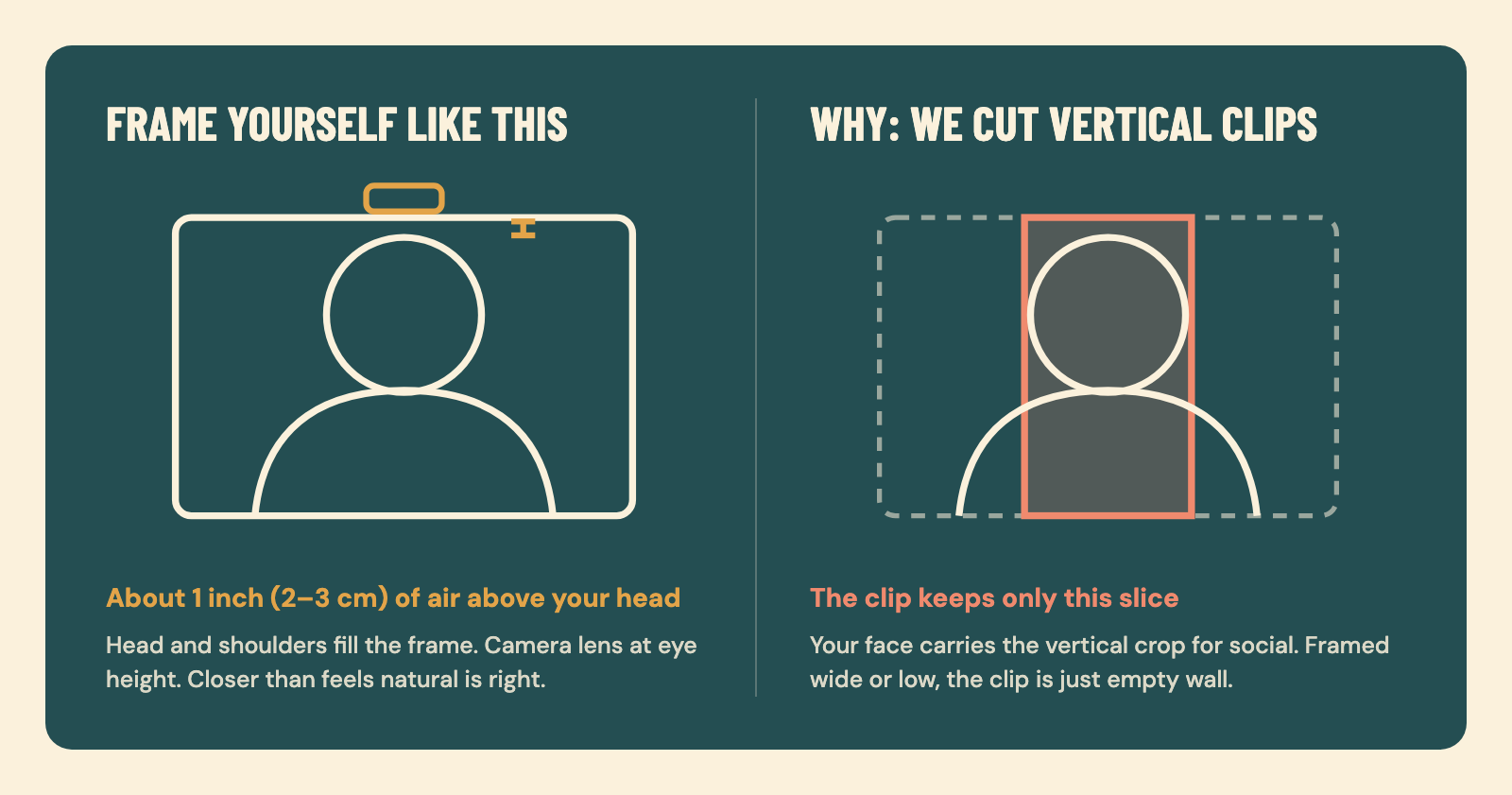
Why it matters: we cut vertical clips. As well as the full episode, we turn your recording into short vertical clips for social media. A vertical clip keeps only a narrow slice of the picture around your face. If you sit far back or low in the frame, that slice is mostly empty wall. Tight framing is what makes those clips work.
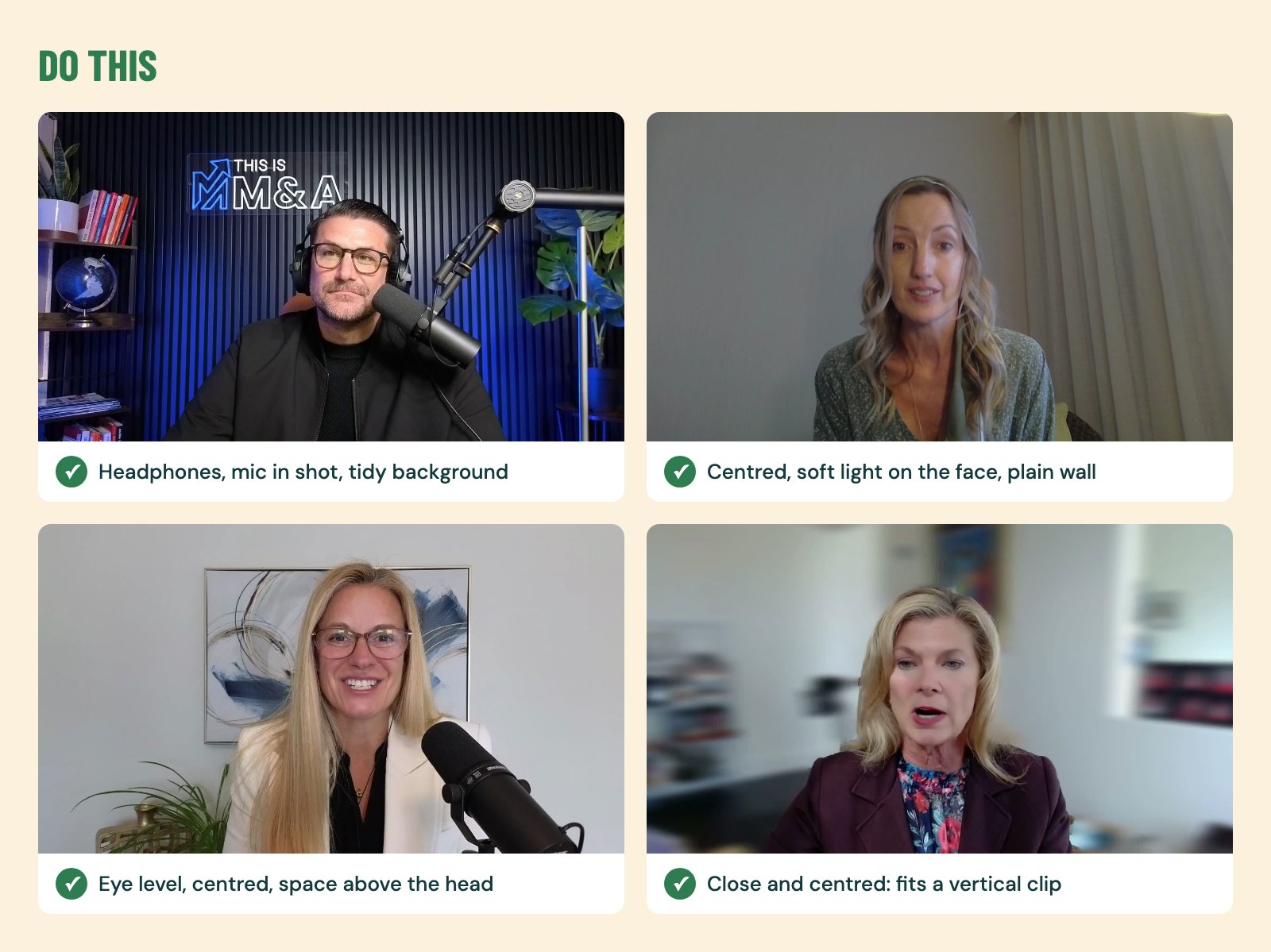
Real remote recordings that work: centred, lit from the front, at eye level, with room around the head for a vertical crop.
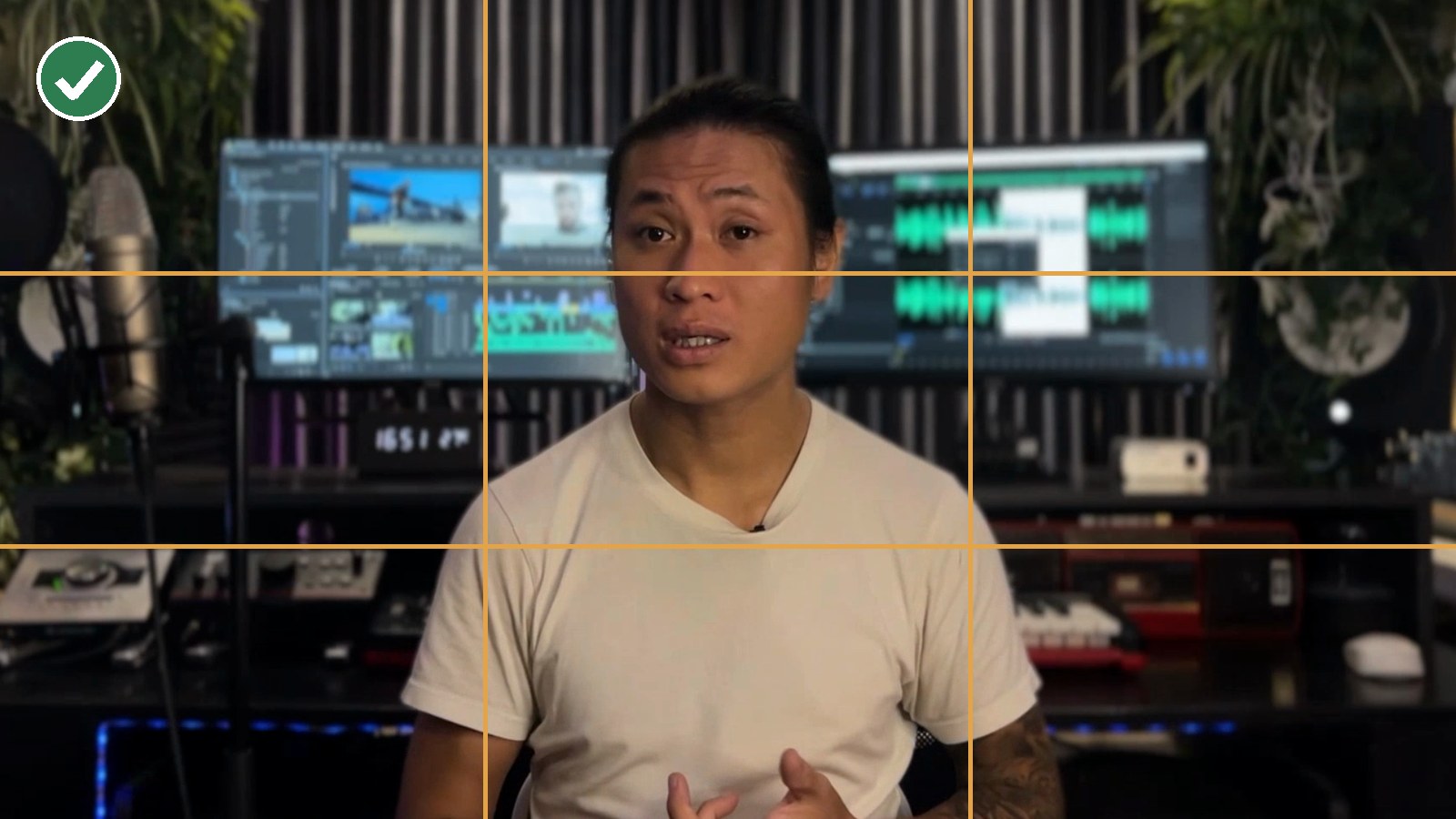
A simple check: split the picture into thirds. Your eyes should sit near the top line.
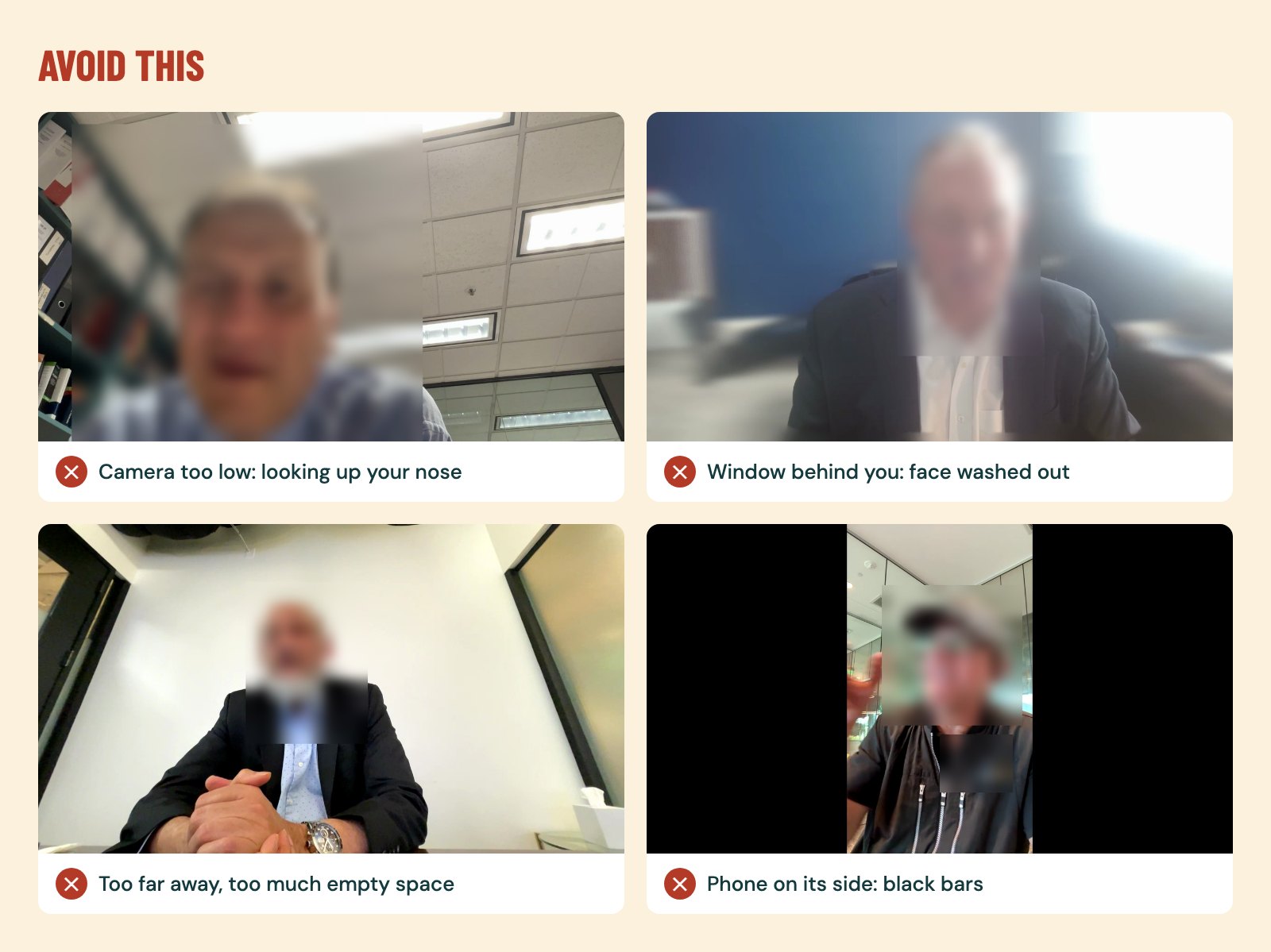
Common problems we see: the camera too low, a window behind you, sitting too far away, and a phone turned on its side. If you record on a phone, hold it sideways (landscape).
Close other apps. Quit anything you don’t need for the call. It frees up your internet connection and stops pop-ups.
Your room
Turn off background noise. Fans, air conditioners, dehumidifiers, washing machines and dishwashers all get picked up. Close the windows and move away from busy streets.
Cut the echo. Soft furnishings absorb sound and hard rooms bounce it. If your room echoes, throw blankets over hard surfaces, or record in a smaller room with more stuff in it.
Tell people you’re recording. Let the people you live or work with know. Put pets in another room. A “Recording, please don’t disturb” note on the door helps.
Phones and computers on Do Not Disturb. Silence both. Quit Slack, email and any app that pings. A notification sound in the recording can’t be cleanly removed.
On the day
Log in 10 minutes early. That gives you time to test your audio, video and connection once more before we start.
Have water nearby. Room-temperature water is best, because cold drinks tighten your throat. Take small sips between answers.
Don’t shuffle papers or type. The mic picks up everything. If you need notes, keep them on screen, or printed and laid flat.
If you make a mistake, pause and carry on. A two-second pause gives the editor a clean place to cut. Don’t apologise and don’t restart the whole answer. Just pause and say the sentence again.
After the recording
Don’t close your laptop straight away. Riverside records on each person’s computer and then uploads the files. Keep the app open and your laptop awake until the upload has fully finished. If you close it too early, your side of the recording can be lost.
Before you hit record
Check these six things:
- Headphones on
- External mic plugged in and picked as the input (or your laptop mic tested and working)
- Wired internet, or sitting next to the router
- Quiet room: windows closed, fans off, phones on Do Not Disturb
- Camera at eye level, close enough that your head and shoulders fill the frame, facing the light
- A glass of water within reach
Questions
Do I need special equipment to record a podcast?
No. Headphones and a quiet room matter more than gear. An external mic helps, but even phone earbuds with a built-in mic sound better than a laptop mic. Wired headphones are best because they don’t drop out or lag.
Why do I need headphones if I’m the only one in the room?
On a remote call, the other person’s voice comes out of your speakers and your mic records it again. That causes echo and feedback in the recording. Headphones keep each person’s voice on their own track, so the editor can clean up and level each speaker.
Can I record on Wi-Fi?
Yes, but wired internet is safer. On Wi-Fi, sit as close to the router as you can, close other apps, and ask others on your network not to stream or download during the recording.
What should I do if I stumble over a word?
Pause for about two seconds, then say the sentence again. Don’t stop the recording or apologise. The pause gives the editor a clean cut point, and the mistake disappears in the final episode.
What if something isn’t working before my session?
If you’re recording with Videopod, reply to the email your recording link came in. We’ll jump on a five-minute test call before your session to sort it out.
Ready to record
That’s all it takes: headphones, a quiet room, a good connection, and a few minutes of testing the day before. Do these and your episode will sound clean, and the edit can focus on making you sound great instead of fixing problems. If you want the editing, clips and publishing handled for you afterwards, take a look at the Episode Kit.